Vibe Coder · Unit 16: AI Agents · Lesson 4 of 9
Build with Google AI Studio
Google AI Studio’s Build mode turns a prompt into a working Gemini app with a server, a database option and a deploy button. What it makes and how to keep control of it.
Read the short notes and pictures.Do everything inside a blue frame.
When the app is the agent
The last two lessons put an agent behind a chat window. Often what you want is a small app in which the model does one thing well: a brief writer, a quiz maker, an image describer. Google AI Studio has a Build mode made for this. You describe the app and it generates one that calls Gemini, with a live preview beside the chat.
What it makes
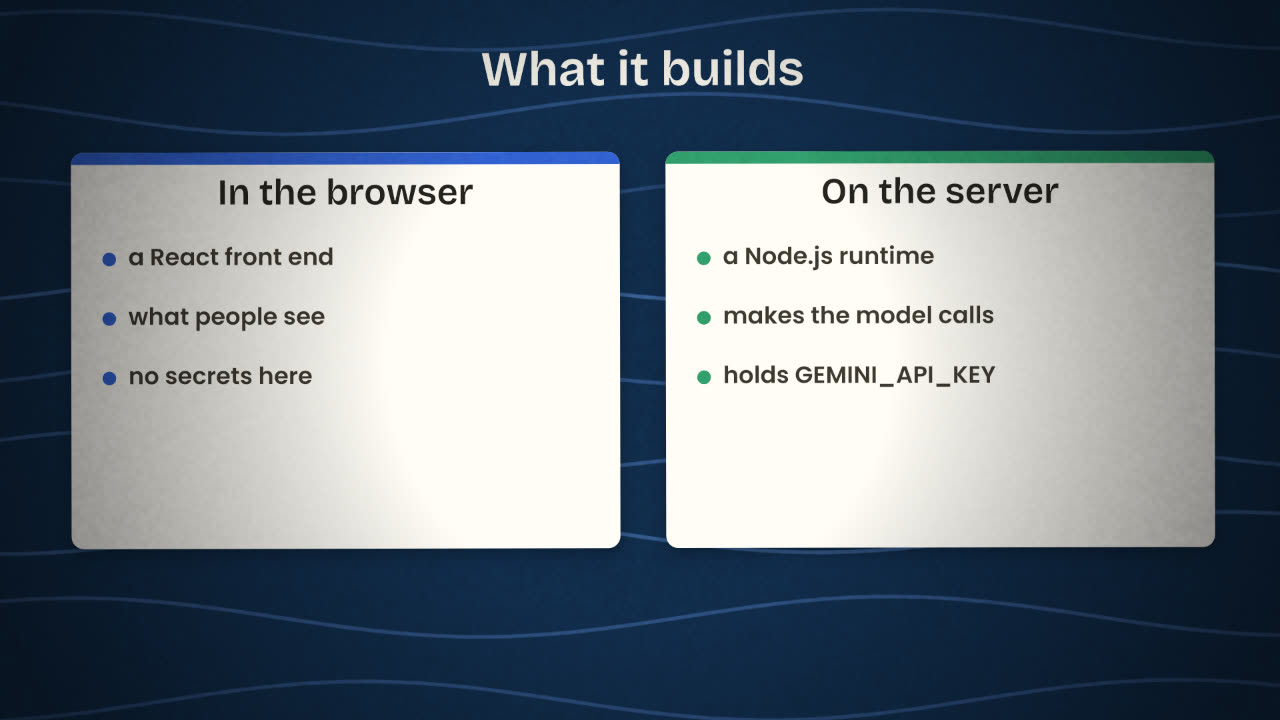
Front end
A React app: the screens people use.
Server runtime
A Node.js server for secure API calls, database connections and packages.
The key
AI Studio stores your GEMINI_API_KEY as a server-side secret. You can see it in the Secrets panel. It is never included in the browser code.
Backend, if you ask
Firebase Firestore for data and Firebase Authentication for sign-in can be set up automatically.
Android too
Build mode can also generate native Android apps.
Working with it
Start
From a prompt, from an app in the gallery, or by importing a GitHub repository.
Refine in the chat panel
One change at a time, as with any coding agent.
Use annotation mode
Highlight part of the preview and describe the change. This is fast for layout fixes.
Open the Code tab
Read what was written. You can edit it directly.
Test the model feature
With real inputs, including awkward ones.
Shipping and owning the code
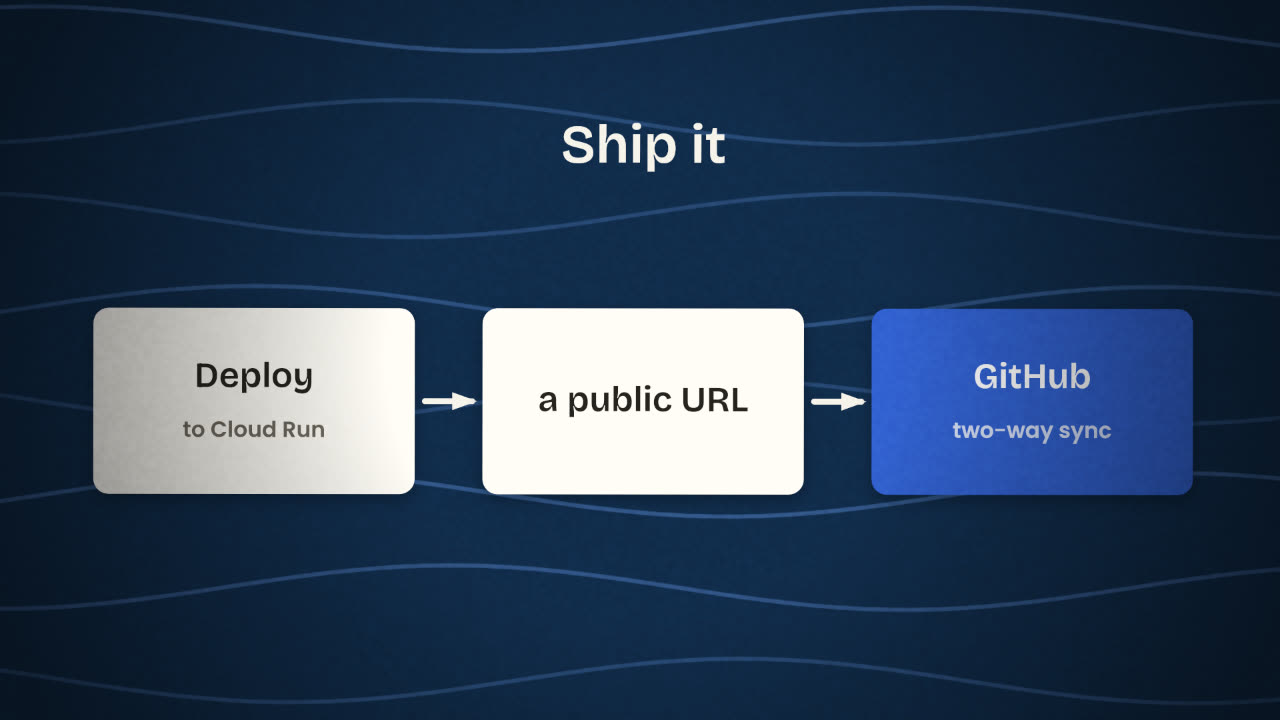
Build mode can deploy the app to Cloud Run, which gives it a public address. It can also sync the project with a GitHub repository in both directions, or let you download the code as a ZIP. Do the GitHub sync early. Once the code is in your repository you can open it in Claude Code, review it, and move it somewhere else if you ever need to.
Use Build mode when
You want a small Gemini-powered app.
You want it live today.
You are happy on Google’s stack.
Use something else when
You need another model provider.
The app is mostly screens and data.
The job is back-office automation.
You built a quiz-maker app in Build mode and want to share the link publicly. List three things to check first.
Ship one small AI app
In Google AI Studio’s Build mode, build one small app that supports your product, such as a brief generator or a support helper. Refine it, protect the model feature, deploy it, and sync it to GitHub.
Done when
Add the live URL and the repository link to your project notes.
Keep these
- Build mode turns a prompt into a Gemini app with a server.
- The key is kept as a server-side secret.
- Deploy to Cloud Run and sync the code to GitHub.