Vibe Coder · Unit 21: AI Video Production · Lesson 7 of 14
Open video models in ComfyUI
Run an open video model yourself. A video workflow in ComfyUI is the image workflow with frames added: load the model, give it a start image and a prompt, sample, and save a clip.
Read the short notes and pictures.Do everything inside a blue frame.
What you already know
In the image unit you learned to read a ComfyUI graph: load a model, encode a prompt, sample in the latent, decode, save. A video workflow has the same shape. The model is a video model, the latent holds many frames instead of one, and the last node writes a clip.
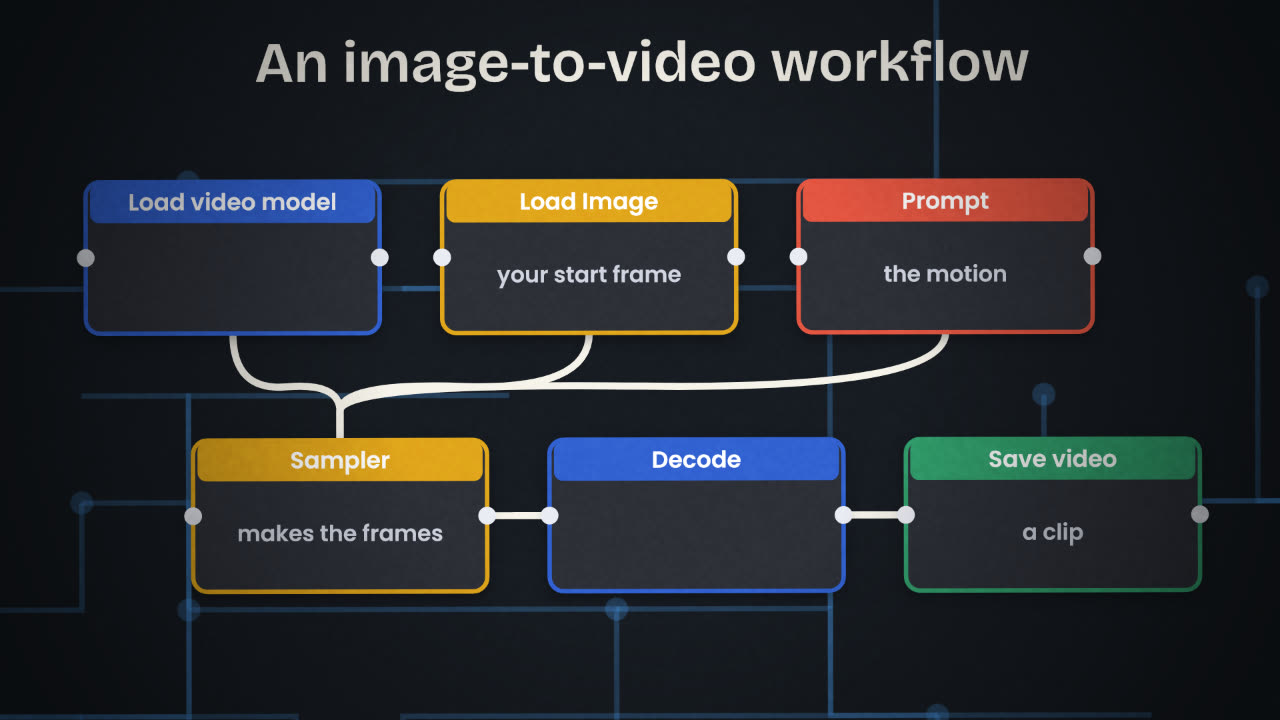
Start from a template
Open the workflow templates
And find the video section. There are templates for current open video models.
Pick image to video
So you can use the stills you already approved.
Download what it asks for
Video models, like Flux, come as several files that go in the folders the template names.
Load your start image
In the Load Image node.
Write a motion prompt
What moves and how the camera moves. The still already shows what is in the frame.
Frames
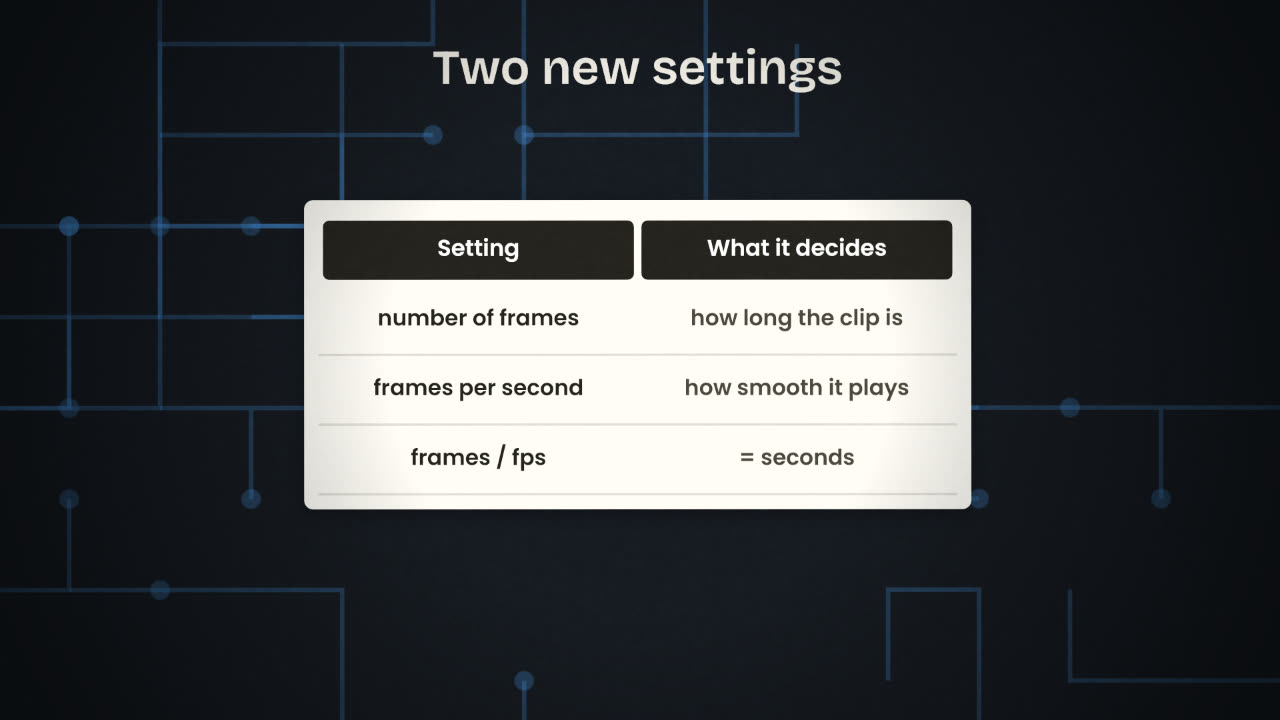
Two settings are new. The number of frames sets how long the clip is. Frames per second sets how smoothly it plays. Divide one by the other for the length: 48 frames at 24 per second is a two-second clip. Each model has a frame count it was trained around; the template starts you at a sensible value.
A motion prompt that fights the still
A modern office with a laptop and a
plant and a mug and morning light and
a person walking in
A motion prompt that works
Slow push-in toward the laptop screen.
Steam rises gently from the mug.
Soft morning light, no other movement.
Drafts and finals
A video generation does many times the work of an image. On your own hardware a clip can take minutes. So work in two passes, as you would with a film camera.
Draft small
Low resolution, few frames, a few seeds. You are judging the motion.
Choose
Keep the seed and prompt of the take that moves correctly.
Render the final
Same seed and prompt, full size and length. Only for takes you will use.
Save the workflow
With the clip. The settings are how you remake it.
Flicker or warping
Simplify the motion prompt; reduce how much moves at once.
The subject changes
Use a clearer start image, or a model that accepts a reference.
Out of memory
Fewer frames, lower resolution, a smaller or quantized model, or Comfy Cloud.
Nothing moves
Say what moves, and name the camera movement.
Your draft clip is 16 frames at 16 frames per second and you need a 4-second shot. What do you change, and what might go wrong?
Animate one shot with an open model
In ComfyUI or Comfy Cloud, open an image-to-video template for an open model. Animate one approved still from your storyboard: draft small with a few seeds, pick the best, and render one final clip. Then publish your video files.
Done when
Compare this clip with the hosted version of the same shot, and use the better one in your edit.
Keep these
- A video workflow is the image graph with frames added.
- Frames divided by frames per second gives the length.
- Draft small, then render only the takes you will use.